User Guide
TABLE OF CONTENTS
INTRODUCTION to the Tutee Managing System (TMS)
Is it hard for private tutor such as yourself to keep track of the students’ information and their progress? Fret not, we present to you our revolutionary solution for managing your tutees, the Tutee Managing System (TMS) . TMS is a desktop application designed for private tutors managing students, optimized for use via a Command Line Interface (CLI) while still having the benefits of a Graphical User Interface (GUI). TMS utilizes your fast typing ability to execute your management tasks faster than traditional GUI apps.
Quick start: A guide to start using TMS
-
Ensure you have Java
11or above installed in your computer. -
Download the latest
TMS.jarfrom here. -
Copy the file to the folder you want to use as the home folder for your Tutee Managing System.
-
Open a command terminal,
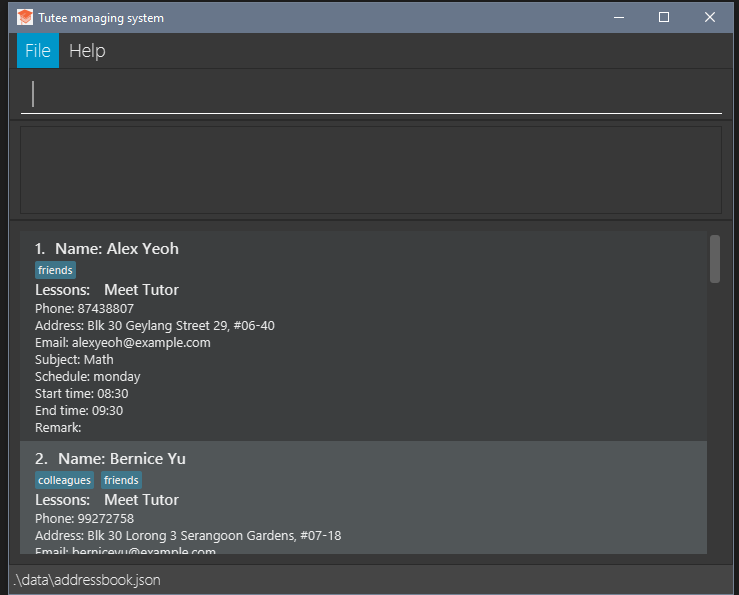
cdinto the folder you put the jar file in, and use thejava -jar TMS.jarcommand to run the application.A UI similar to the below should appear in a few seconds. Note how the app contains some sample data.
-
Type the command in the command box and press Enter to execute it. e.g. typing
helpand pressing Enter will open the help window.
Some example commands you can try:-
list: Lists all students. -
add n/John Doe p/98765432 e/johnd@example.com a/John street, block 123, #01-01 s/Math sch/monday st/09:30 et/11:30: Adds a student namedJohn Doeto the TMS. -
delete 3: Deletes the 3rd student shown in the current list. -
clear: Deletes all students. -
exit: Exits the app.
-
-
Refer to the Features below for details of each command.
Back to top
FEATURES
 Notes about the command format:
-
Words in
UPPER_CASEare the parameters to be supplied by the user.
e.g. inadd n/NAME,NAMEis a parameter which can be used asadd n/John Doe. -
Items in square brackets are optional.
e.gn/NAME [t/TAG]can be used asn/John Doe t/friendor asn/John Doe. -
Items with
… after them can be used multiple times including zero times.
e.g.[t/TAG]…can be used as ` ` (i.e. 0 times),t/friend,t/friend t/familyetc. -
Parameters can be in any order.
e.g. if the command specifiesn/NAME p/PHONE_NUMBER,p/PHONE_NUMBER n/NAMEis also acceptable. -
If a parameter is expected only once in the command but you specified it multiple times, only the last occurrence of the parameter will be taken.
e.g. if you specifyp/12341234 p/56785678, onlyp/56785678will be taken. -
Extraneous parameters for commands that do not take in parameters (such as
help,list,exitandclear) will be ignored.
e.g. if the command specifieshelp 123, it will be interpreted ashelp.
Back to top
Viewing help : help
Shows a message explaning how to access the help page.

Format: help
Back to top
Add Student : add
Adds a student to the managing system.
Format: add n/NAME p/PHONE_NUMBER e/EMAIL a/ADDRESS s/SUBJECT sch/SCHEDULE st/START TIME et/END TIME
- Subject supported: {
Math,Physics,English} - Schedule supported: {
monday,tuesday,wednesday,thursday,friday,saturday,sunday} - The added student must have a unique name, phone number and email address and all the fields in the format present
- You may add an extra tag to the student by adding t/[tag] at the end of the command.
- Tags must be in alphanumeric characters
Examples:
-
add n/John Doe p/98765432 e/johnd@example.com a/311, Clementi Ave 2, #02-25 s/Math sch/monday st/09:30 et/11:30adds a student namedJohn Doewith a phone number98765432, emailjohnd@example.com, address as311, Clementi Ave 2, #02-25and records him as taking math lessons on monday09:30to11:30 -
add n/John Doe p/98765432 e/johnd@example.com a/311, Clementi Ave 2, #02-25 s/Math sch/monday st/08:30 et/10:30 t/JC1 t/SonOfJerryadds the same student with two tags,JC1andSonOfJerry
Back to top
Copy Student : copy
Copies an existing student to the managing system with a different subject or schedule.
Format: copy <index> s/SUBJECT sch/SCHEDULE st/START TIME et/END TIME
-
Copies the student at the specified INDEX. The index refers to the index number shown in the displayed student list. The index must be a positive integer 1, 2, 3, …
-
All of the fields must be provided.
Examples:
-
copy 2 s/Math sch/monday st/09:30 et/11:30copies the 2nd student in the managing system and adds a copy of the tutee with math lessons on monday 09:30 to 11:30
Back to top
Delete Student : delete
Removes a student from the managing system.
Format: delete <index>
- Deletes the student at the specified INDEX. The index refers to the index number shown in the displayed student list. The index must be a positive integer 1, 2, 3, …
Examples:
-
delete 1deletes the first student displayed in the system
Back to top
List Students : list
Lists students in the managing system.
Format: list
Examples:
list
Back to top
Edit Student : edit
Edits an existing student in the managing system.
Format: edit <index> [n/NAME] [p/PHONE] [e/EMAIL] [a/ADDRESS] [t/TAG]…
- Edits the student at the specified
INDEX. The index refers to the index number shown in the displayed student list. The index must be a positive integer 1, 2, 3, … - At least one of the optional fields must be provided.
- Existing values will be updated to the input values.
- When editing tags, the existing tags of the student will be removed i.e adding of tags is not cumulative.
- You can remove all the student’s tags by typing
t/without specifying any tags after it.
Examples:
-
edit 1 p/91234567 e/johndoe@example.comEdits the phone number and email address of the 1st student to be91234567andjohndoe@example.comrespectively. -
edit 2 n/Betsy Crower t/Edits the name of the 2nd student to beBetsy Crowerand clears all existing tags.
Back to top
Find Student: find
Finds students whose names contain any of the given keywords.
Format: find KEYWORD [MORE_KEYWORDS]...
- The search is case-insensitive. e.g
hanswill matchHans - The order of the keywords does not matter. e.g.
Hans Bowill matchBo Hans - Only the name is searched.
- Only full words will be matched e.g.
Hanwill not matchHans - Students matching at least one keyword will be returned (i.e.
ORsearch). e.g.Hans Bowill returnHans Gruber,Bo Yang
Examples:
-
find JohnreturnsjohnandJohn Doe -
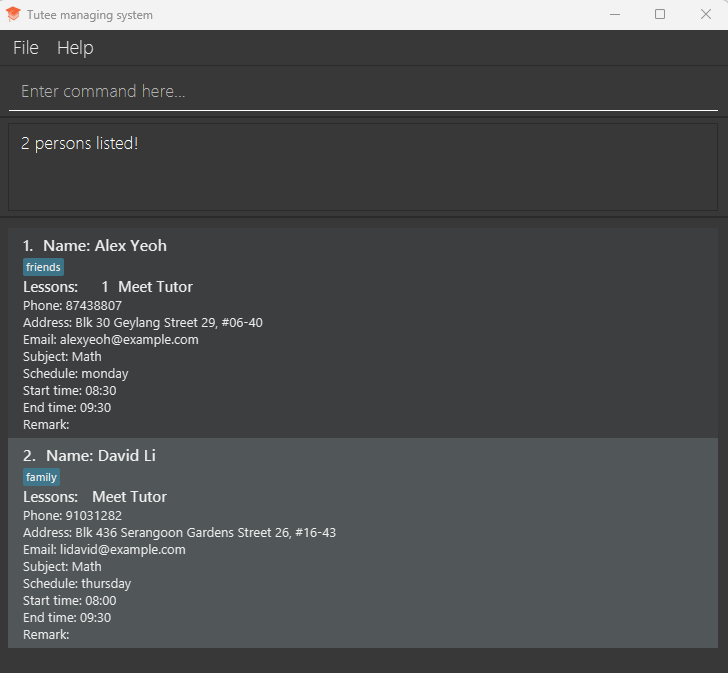
find alex davidreturnsAlex Yeoh,David Li
Back to top
Filter Students : filter
Filter and list students whose fields contain any of the given keywords.
Format: filter [n/NAME] [p/PHONE] [e/EMAIL] [a/ADDRESS] [s/SUBJECT] [sch/SCHEDULE] [st/START TIME] [et/END TIME] [t/TAG]
- Filter is case-insensitive. e.g
n/yeohwill matchYeoh - Only
NAME,ADDRESS,TAGcan include more than 1 word. - At least one of the fields must be provided.
- The order of the keywords does not matter. e.g.
n/Yeoh Alexwill matchAlex Yeoh - All fields can be searched and filtered.
- Only full words will be matched e.g.
n/Yeowill not matchYeoh - When only one field is specified, tutees matching at least one keyword will be returned(i.e.
ORsearch). e.g.a/blk streetwill returnBlk 313,street 29 - When more than one field is specified, only tutees whose keywords matching all fields provided will be returned
e.g.
filter s/math sch/mondaywill only return tutees whose lessons are onmondayAND subjectmath
Examples:
-
filter sch/tuesdayreturns tutees whose lessons are on tuesday. -
filter a/clementi s/mathreturns tutees whose address are inclementiand being tutoredmathsubject.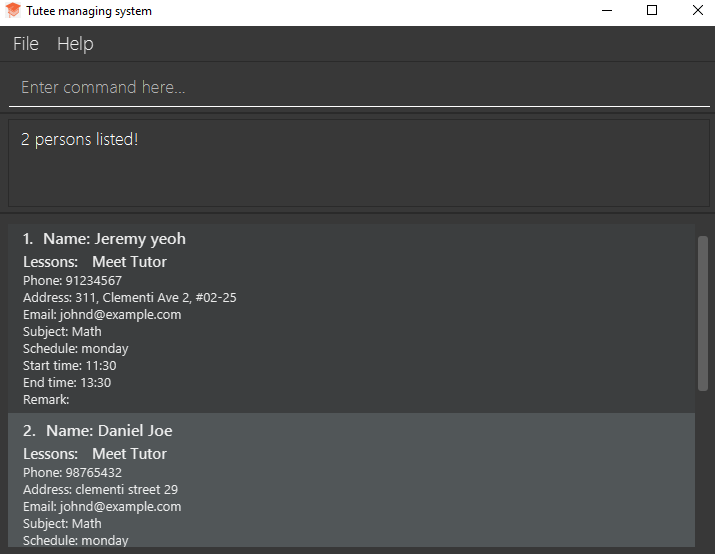
Back to top
Add a lesson : learn
You can add a lesson taught to a student.
Format: learn <index> [l/LESSON]
- The index refers to the index number shown in the displayed student list. The index must be a positive integer 1, 2, 3, …
- The lesson must be in alphanumeric characters.
Example:
-
learn 1 l/Rational number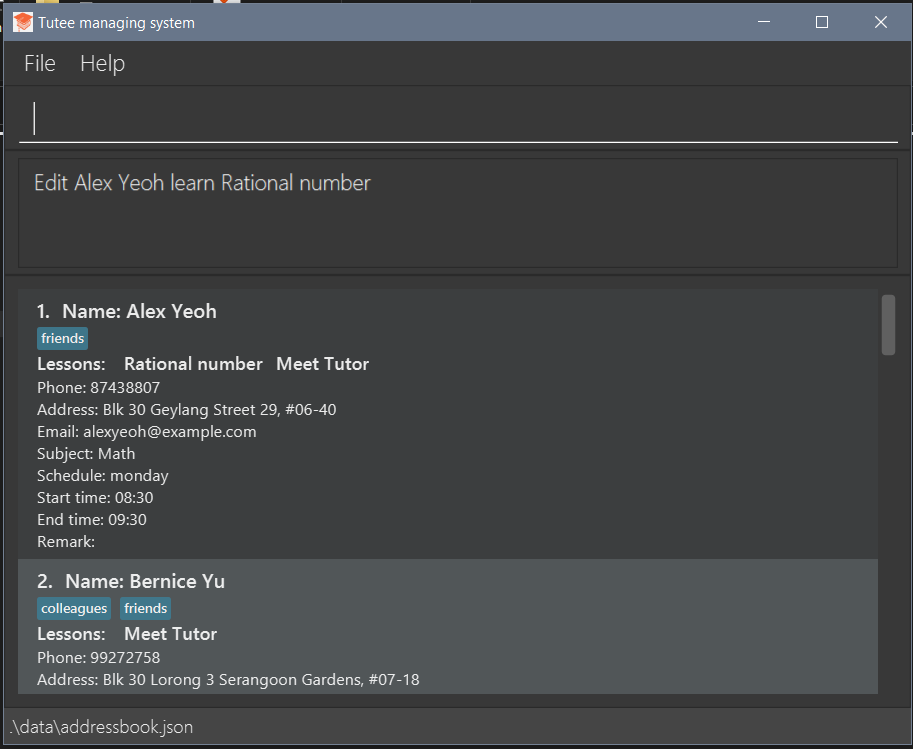
- The command adds the lesson
Rational numberto student 1 (Alex Yeoh) and display successful messageEdit Alex Yeoh learn Rational Number.
- The command adds the lesson
Back to top
Removing a lesson : unlearn
You can remove a lesson taught to a student.
Format: unlearn <index> [l/LESSON]
- The index refers to the index number shown in the displayed student list. The index must be a positive integer 1, 2, 3, …
- The lesson must match an existing lesson displayed
Examples:
-
unlearn 1 l/Rational number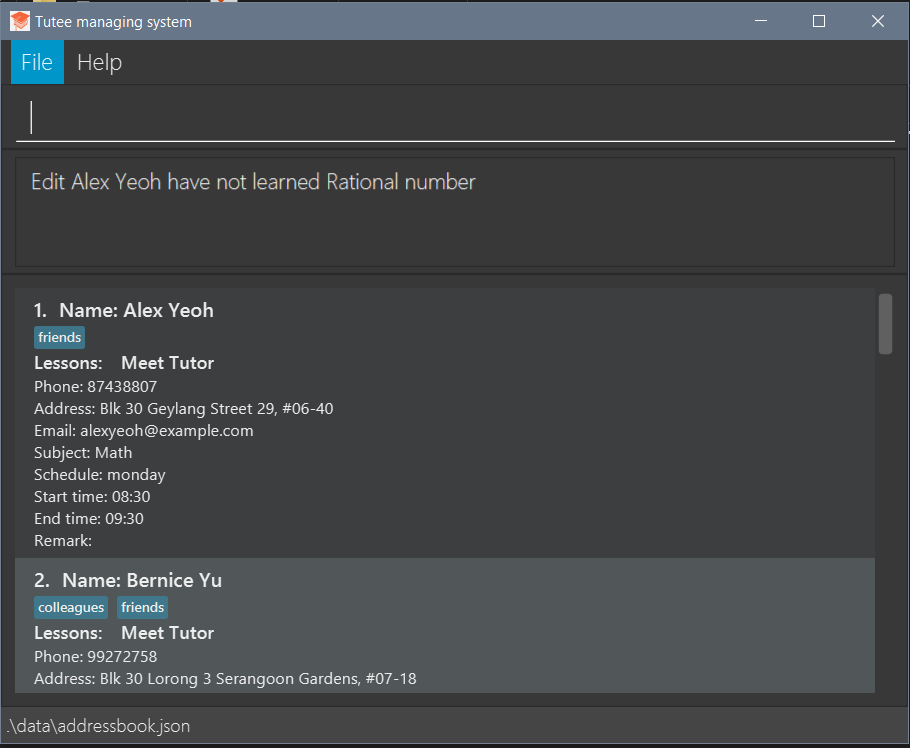
- The command removes the lesson
Rational numberto student 1 (Alex Yeoh) and display successful messageEdit Alex Yeoh have not learned Rational Number.
- The command removes the lesson
Back to top
Marking attendance : mark
Use mark to indicate that the tutee was present on the given dates
Format: mark <index> [date...]
- Marks the attendence of a student at the specified INDEX. The index refers to the index number shown in the displayed student list. The index must be a positive integer 1, 2, 3, …
- If a date is not specified, the current date is used.
- If the tutee was already present, the command will have no effect.
Examples:
-
mark 1marks the attendance of the first student displayed for the current date -
mark 1 2023-03-10marks the attendance of the first student displayed for the date “2023-03-10” as shown below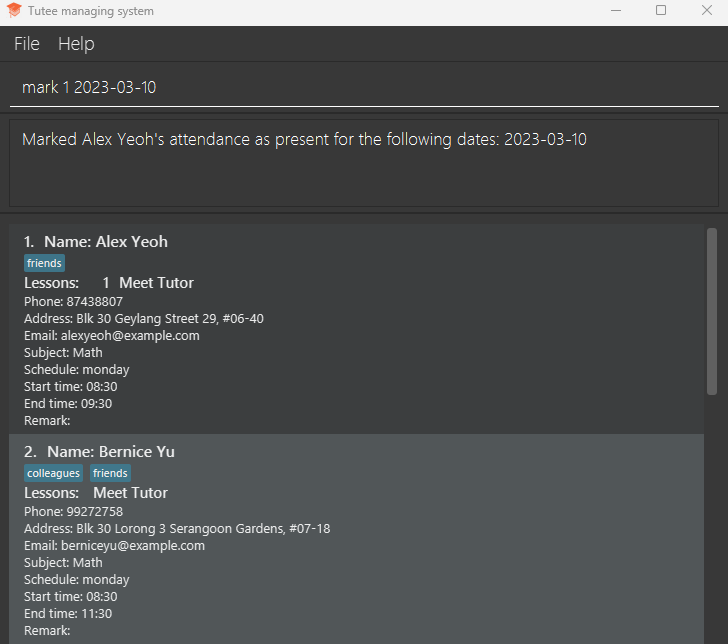
Unmarking attendance : unmark
Use unmark to indicate that the tutee was absent on the given dates
Format: unmark <index> [date...]
- Unmarks the attendence of a student at the specified INDEX. The index refers to the index number shown in the displayed student list. The index must be a positive integer 1, 2, 3, …
- If a date is not specified, the current date is used.
- If the tutee was already absent, the command will have no effect.
Examples:
-
unmark 1marks the attendance of the first student displayed for the current date -
unmark 1 2023-03-10marks the attendance of the first student displayed for the date “2023-03-10” as shown below
Back to top
Query attendance : query
Use this command to check the tutee’s attendance.
Format: query <index> [date]
- Queries the attendence of a student at the specified INDEX. The index refers to the index number shown in the displayed student list. The index must be a positive integer 1, 2, 3, …
- If no date is given, all of the dates that tutee was present on will be displayed
- Otherwise, the command will return if the tutee was present on the given date.
Examples:
-
query 1displays all the marked dates that the first student has as shown below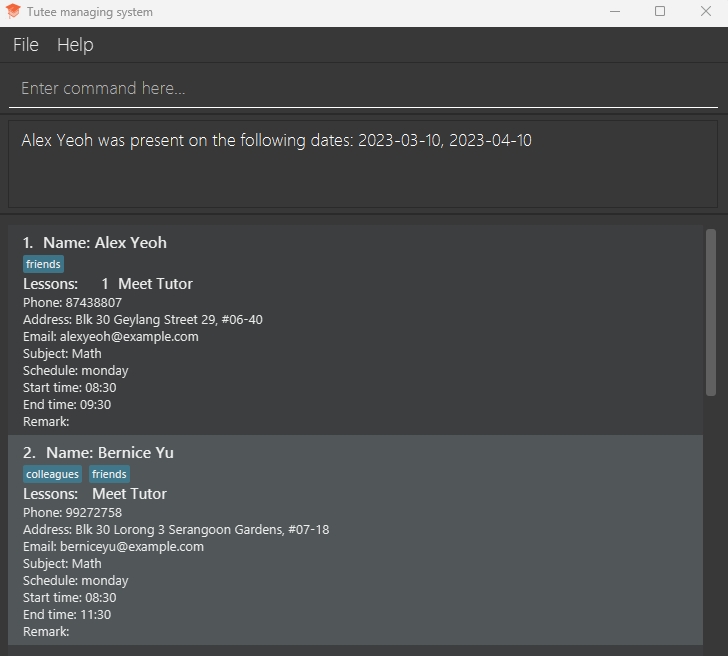
-
query 1 2023-03-10displays whether the first student was marked present during his lesson on 2023-03-10
Back to top
Local save
Saves the current state of the program on the hard disk upon exit.
Done automatically.
Back to top
Local load
Loads the saved state of the program (if there is any) on the hard disk.
Creates an empty file if there is none.
Done automatically.
Back to top
Clear students : clear
Clears all entries from the managing system.
Format: clear
Back to top
Exit program
Exit the program.
Format: exit
Back to top
FAQ
Q: How do I transfer my data to another computer?
A: Follow quick start on the new computer and overwrite the empty data file it creates with the file that contains the data of your previous data file.
Back to top
Command summary
Commands that take in fields (i.e. et/ or sch/) can all be used with the following parameters:
n/NAMEp/PHONEe/EMAILa/ADDRESSs/SUBJECTsch/SCHEDULEst/START TIMEet/END TIMEt/TAG
Sidenote:
-
r/REMARKcan only be used with theeditcommand.
The table below lists only some of the fields that can be used with the command. To see the full list, refer to the entry for that command in the guide above.
| Action | Format and Examples |
|---|---|
| Add Student |
add n/NAME p/PHONE e/EMAIL a/ADDRESS s/SUBJECT sch/SCHEDULE st/STARTTIME et/ENDTIME [t/TAG]... e.g., add n/John Doe p/98765432 e/johnd@example.com a/311, Clementi Ave 2, #02-25 s/Math sch/monday st/09:30 et/11:30 |
| Copy Student |
copy <index> s/SUBJECT sch/SCHEDULE st/START TIME et/END TIMEe.g., copy <index> s/SUBJECT sch/SCHEDULE st/START TIME et/END TIME
|
| Delete Student |
delete INDEXe.g., delete 1
|
| List Students | list |
| Edit |
edit <index> [n/NAME] [p/PHONE] [e/EMAIL] [a/ADDRESS] [t/TAG]…e.g., edit 1 p/91234567 e/johndoe@example.com
|
| Find |
find KEYWORD [MORE_KEYWORDS]e.g., find John
|
| Filter |
filter [n/NAME] [p/PHONE] [e/EMAIL] [a/ADDRESS] [s/SUBJECT] [sch/SCHEDULE] [st/START TIME] [et/END TIME] [t/TAG]e.g., filter a/clementi s/math
|
| Add lesson |
learn <INDEX> [l/LESSON]e.g., learn 1 l/Rational number
|
| Remove lesson |
unlearn <index> [l/LESSON]e.g., unlearn 1 l/Rational number
|
| Mark attendance |
mark <index> [date...]e.g., mark 1 2023-03-10
|
| Unmark attendence |
unmark <index> [date...]e.g., unmark 1 2023-03-10
|
| Query attendence |
query <index> [date]e.g., query 1 2023-03-10
|
| Clear | clear |
| Exit program | Exit |
| Help | help |